


If you own a local business, ranking on the first page of Google should come second. Your first priority should be showing up on Google Maps, because those listings appear above the regular organic search results on the SERP.
Over 85% of users interact only with the top three recommended businesses in the Google Maps Local Pack, so if you are not among them, you are losing way more customers than you think.
Now your question should be: How do you rank higher on Google Maps? That’s exactly what this blog will discuss in detail.
How Does Google Maps Work?
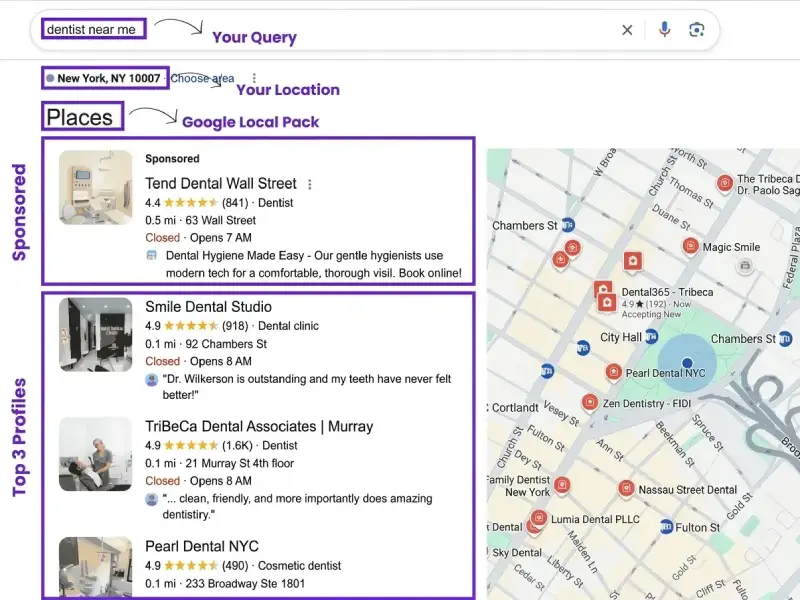
Someone searches “dentist near me.” Google shows a map with three businesses at the top plus some sponsored ones. That block is the Local Pack, and it sits above the regular organic results. Click or tap “More places” to see the rest.
The same listings appear inside the Google Maps app. Each one is powered by a Google Business Profile, formerly called Google My Business. That profile holds your name, address, hours, photos, reviews, and more.
Google builds each result using your profile and what it finds about you across the web. Then it matches that information to the searcher’s words and location.
Google Maps Ranking Factors That Decide Your Position
Google says local results rest mainly on three factors: relevance, distance, and prominence. Here is what each one means and what you can do about it.

Relevance
Relevance is how well your profile matches what a person typed. A search for “emergency plumber” will not surface a profile that only says “home services.”
What to work on:
- Pick the most accurate primary category
- List every service you offer
- Write a clear description with natural local keywords
- Back it up with matching pages on your website
Proximity
Proximity is the distance between the searcher and your business. You cannot move your building. You can still widen the area where you show up.
What to work on:
- Place your map pin exactly
- Set your service area if you travel to customers
- Name the neighborhoods and cities you serve in your description and on your website
- Create a page for each area you cover
- Use a local phone number
Prominence and Engagement
Prominence is how well known and trusted your business is. Google says it reflects signals such as how many websites link to you and how many reviews you have. More reviews with positive ratings help.
Engagement supports it. Calls, direction requests, website clicks, and review replies show that people find your listing useful. Google has not published how much weight each action carries, so treat engagement as a supporting signal and not a formula.
What to work on:
- Collect reviews steadily and reply to every one
- Add fresh photos and posts
- Earn links and citations on trusted local sites
- Send every click to something useful, such as a fast mobile website
How to Rank Higher on Google Maps in 11 Steps
So, how do you actually improve your Google Maps rankings? These 11 steps cover the key areas to focus on:
1. Claim and Verify Your Business Profile
- Search your business name on Google Maps. If a listing exists, choose the option to claim it. If nothing appears, add your business as a new place.
- Then verify it. Depending on your business, Google may offer a postcard with a PIN, a phone call, an email, or a video. Pick the method offered to you and finish it.
- This step matters. Verification tells Google you are allowed to represent the business, which makes your profile more likely to show up in search results.
- Keep one profile per location. Duplicates split your signals and can cause problems. If you find one, report it through Google Business Profile support.
2. Complete Every Section of Your Profile
Google says businesses with complete and accurate information are more likely to appear in local results. Fill in everything that applies to you.
Business name: Use your real-world name, the same one on your signage and website. Adding keywords or taglines breaks Google’s guidelines and can lead to suspension.
Category: Choose with care. Step 3 covers this.
Address and pin location: Enter a precise address. Check that the pin sits on your entrance.
Service area: List the cities or zip codes you serve if you visit customers.
Hours: Add regular hours and special hours for holidays. Wrong hours lead to unhappy visitors and bad reviews.
Phone number: Use a local number with your area code as the primary line. If you use call tracking, set the tracking number as primary and your main number as additional.
Website: Link to the page that best matches the profile. Multi-location brands should link to the location page.
Social media links: Add every profile you keep active.
Attributes: Mark what applies, such as wheelchair access, free Wi-Fi, outdoor seating, or online appointments.
Photos and videos: Step 6 covers these.
Business description: Say what you do, who you serve, and where. Use plain words.
Opening date: Add the date you opened.
Menu or services: List each one with a short description. Availability depends on your business type.
Products: Add your main products where the option is offered.
Check-in and check-out times and hotel information: Hotels only
Review the whole profile once a month. Small gaps cost visibility.
3. Choose the Right Categories
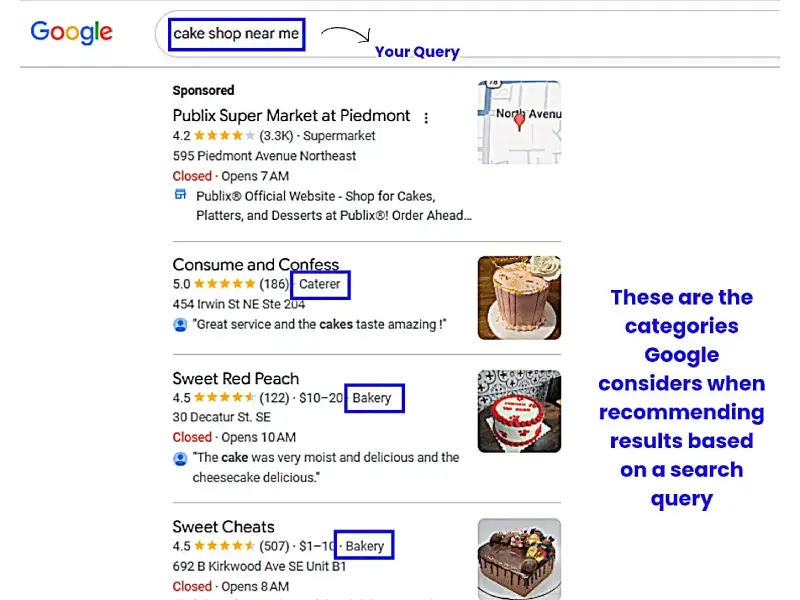
Your primary category tells Google what you are first and foremost. Pick the one that matches your core offer. A bakery that also sells coffee should still lead with a bakery.
Then add secondary categories that truly apply. You cannot invent custom categories. Start typing your main service in the category box, and Google shows the options.
Check the top three businesses in your search results. See which categories they use. If a relevant one fits you too, add it.
4. Add Local Keywords Where Google Looks
Local keywords pair a service with a place, such as “AC repair in Dallas.” They help Google match your business to nearby searches.
Place them where they read naturally:
Business description: Mention your main services and the areas you serve.
Services and products: Use clear names and short descriptions.
Google posts: Work the keyword into the first line.
Review replies: Mention the service when it fits. Never force it.
Website title tags, headings, body text, and URLs: Build pages around each service and area.
Image file names and alt text: Describe what the photo shows.
Never add keywords to your business name. That is one of the fastest ways to get suspended.
Here is an example description:
“We repair and install air conditioning systems for homes in Dallas, Plano, and Irving. Our technicians offer same-day visits and clear pricing. Call us when your home needs cooling fast.”
5. Get Authentic Reviews
Reviews are one of the strongest prominence signals. Quantity, quality, and recency all matter. A steady flow beats a sudden burst.
Fake reviews are a risk you do not need. Reviews written by you, your staff, or your relatives can look suspicious. If Google notices unusual activity, it can remove reviews or suspend your profile.
Try natural ways to ask:
Restaurants and cafes: Put a QR code on tables, menus, or receipts.
Retail and salons: Keep a tap card or NFC stand at the counter. Customers tap, and your Google review page opens.
Service businesses: Send a short text or email with your review link right after the job.
Clinics and offices: Add the link to appointment follow-ups and email signatures.
Ask politely, right after a good experience. Make it optional. Your Business Profile gives you a direct review link you can share.
Follow Google’s rules:
- Do not offer discounts or gifts in return for reviews.
- Do not ask only happy customers.
- Do not pressure anyone.
Reply to every review. Thank people who praise you. Answer complaints calmly, offer a fix, and move detailed talks offline. Google says replies show that you value feedback, and future customers read them too.
6. Add Real Photos and Videos
Photos show people what to expect before they visit. They also keep your profile looking active.
Upload:
- Your storefront and entrance
- Interior shots
- Your team at work
- Finished jobs, products, or menu items
- Seasonal updates
Use real images that match reality. Avoid heavy filters and stock photos.
For file specs, Google’s guidance is JPG or PNG, between 10KB and 5MB, with 720 by 720 pixels recommended. Videos can run up to 30 seconds, up to 75MB, at 720p or higher.
Add new photos on a regular schedule.
7. Post Regularly on Your Google Business Profile
Google posts are short updates that appear on your profile in Search and Maps. They carry an image or video, text, and a link.
Google has not confirmed posts as a direct ranking factor. Treat them as a conversion tool first and a freshness signal second. They give searchers a reason to click, call, or visit.
Types of Google Business Profile posts
Update posts: News, announcements, awards, and what makes you different. Most viewers are still comparing options, so lead with your strongest selling point.
Offer posts: Discounts, free consultations, free guides, or any added value. Offers need a start date and an end date. The longest run is 12 months. You can repeat them daily, weekly, or monthly. Add a link to redeem and your terms.
Event posts: Workshops, sales, openings, and classes. Add a title, start and end dates, and an optional description of up to 1,500 characters.
Updated event posts can carry a button. Options include Book, Order online, Buy, Learn more, Sign up, and Call now.
How to create a Google post
- Sign in to the Google account that manages your profile.
- Search your business name on Google or open your Business Profile dashboard.
- Select Add update.
- Choose Update, Offer, or Event.
- Upload a photo or video.
- Write your text. Aim for 80 to 100 words and put the main message and keyword first.
- Add a button and a link to the page that matches the post.
- Set dates for offers and events.
- Preview and publish.
Google reviews each post. Approval often takes a few minutes. Check your dashboard for the status: live, pending, or not approved.
Tips for posts that get approved and clicked
- Keep the tone conversational
- Use your own photos
- Link to the exact page that matches the post
- Add UTM tags to your links so Google Analytics shows which posts bring visits
- Keep one or two offers active at a time
- Post an update every couple of weeks
- Skip phone numbers inside the text, since they can cause rejection
- Avoid regulated product content, such as alcohol, tobacco, or pharmaceuticals
Posts stay active for six months. Fresh ones appear first, in the order you publish them.
8. Keep Your NAP Consistent
NAP stands for name, address, and phone number. Your NAP should be identical everywhere it appears online.
Small differences confuse search engines. “Greenfield Dental Clinic” on your profile and “Greenfield Dental” on a directory is a mismatch. So are “Road” and “Rd,” or “Suite 4” and “#4.”
How to fix it:
- Choose one exact format for your name, address, and phone number.
- Search your business name and phone number on Google.
- List every site that shows your details.
- Correct each one.
- Put your NAP in your website footer as text, not as an image.
Do this audit twice a year, and again after any move or phone change.
9. Build Local Citations and Backlinks
A citation is any mention of your NAP on another website. A backlink is a link to your site. Google lists links to your website as part of prominence, so both help.
Where to build citations:
- Major platforms such as Yelp, Apple Maps, and Bing Places
- Directories for your industry
- City and regional directories
- Your local chamber of commerce
Pick quality over quantity. Keep your NAP identical. Fill out each profile completely, with a description and photos.
Where to earn local backlinks:
- Local business associations
- Events and teams you sponsor, as long as the page links to you
- Local news stories and press coverage
- Partnerships with businesses that complement yours
- Expert tips and guest articles for local publications
- Helpful local resource pages on your own site that others want to reference
Check where the top three competitors are listed. Then get listed there too.
10. Optimize Your Website for Local Search
Your website and your profile support each other. A weak site can hold a strong profile back.
Cover these basics:
Mobile and speed: Make sure pages load fast and read well on phones.
Local landing pages: Create a page for each location or major service area.
Title tags and headings: Include the service and the place.
NAP in the footer: Use text that matches your profile.
Embedded Google Map: Add one to your contact page. Search your business in Google Maps, select Share, choose Embed a map, and paste the code. Use the same address as your profile.
Local business schema: Add structured data with your name, address, phone, and hours. Google explains the setup.
HTTPS: Keep your site secure.
Internal links: Connect your service pages to your location pages.
11. Publish Local Content
Local content shows Google and customers that you know your area. It also lets you rank for searches your profile alone cannot cover.
Ideas that work:
- Neighborhood guides related to your business
- Project spotlights with the area named
- Answers to questions customers ask in your city
- Local regulations or cost guides for your industry
- Coverage of events you join or sponsor
- Case studies featuring nearby customers, with permission
Link each piece to the matching service page. Share the best ones as Google posts.
Why is My Business Not Showing on Google Maps?
Several issues can keep a business out of the results. Work through this list in order.
No listing exists. Search your name on Google Maps. If nothing appears, add your business.
The profile is not verified. Verified profiles are more likely to appear. Finish verification.
The profile is suspended or removed. Google does not always explain why. Common causes include a keyword-stuffed name, a P.O. box or virtual office address, and several listings at one address. Check Google’s representation guidelines, fix the issue, and contact Business Profile support. Also recall what you changed right before the problem began.
The listing is a duplicate. Find and resolve it so one profile carries your signals.
The business is marked closed. Check the status in your dashboard.
You are a service area business with a hidden address. Your listing may appear mainly for searches inside your service area. Set the area accurately.
The category does not match the search. Review your primary category.
Results can differ for each searcher
Google considers the searcher’s location, and personalization can shift results. Check your listing at different spots in your service area and on different devices before you decide you are missing.
How Long Does It Take to Rank on Google Maps?
No one can promise a fixed number of days. Google does not publish a timeline, and every market is different.
These factors shape the pace:
- How competitive your category and city are
- How complete your profile is today
- How many reviews you collect and how often
- How fast you earn citations and links
- How strong your website is
Some changes are in your hands right away. Fixing your categories, hours, description, and photos takes an afternoon. Posts usually go live within minutes of approval.
Other signals build slowly. Reviews, citations, and links add up over time. Rankings also keep shifting as signals change, so there is no finish line.
Stay consistent. Track your progress each month.
Work With an SEO Agency
Ranking on Google Maps takes steady work. Reviews, citations, content, and website fixes all need attention at the same time. Many local businesses hand that work to an SEO agency so they can focus on their customers.
A good agency audits your website and search presence, finds the gaps, and builds a plan around your market. That is the kind of work we do at ClickTraces. Take a look at our SEO services to see how we can help.
Final Thoughts
Ranking higher on Google Maps comes down to a short list of habits. Keep your profile complete. Choose the right categories. Earn reviews the honest way. Post and update often. Keep your details identical across the web. Support it all with a strong local website.
Start with step 1 today. Each step you finish makes your listing easier to find and easier to choose.

